Quotes, tracking and pickup
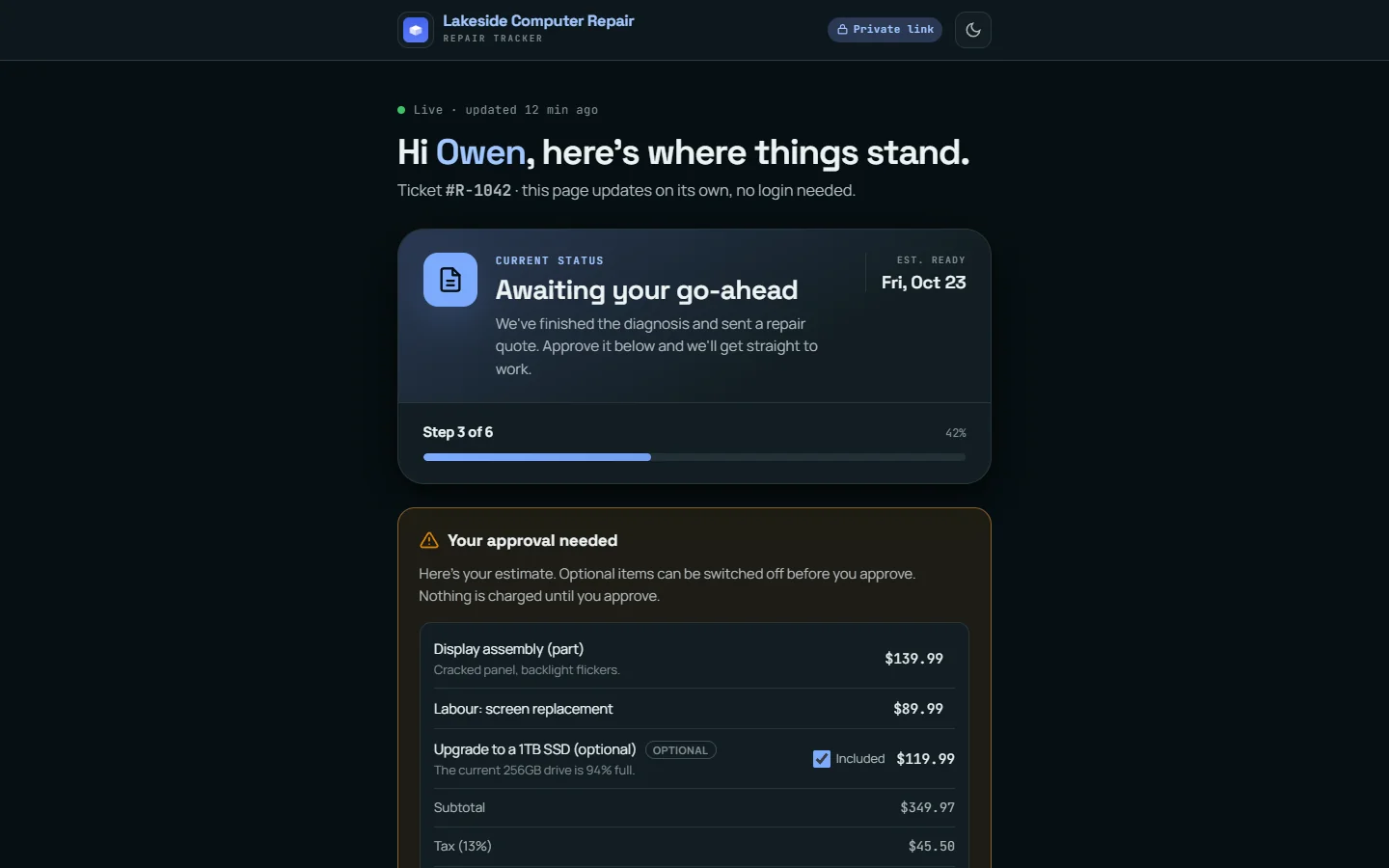
Every repair ticket has a private tracking page. The customer opens it from a link, with no account and no password, and sees where their repair stands.
Sending the link
Open a ticket and use Customer tracking link. It gives you the link plus a ready-made text message and email to send. Each link:
- is signed, so it cannot be guessed or changed to show someone else's repair,
- stops working 90 days after it was made. Make a new one from the ticket if a customer needs it later.
What the customer sees
- The current stage in plain words, the step number and the estimated ready date.
- The updates on the job.
- A chat with the shop. Messages appear on the ticket for your team.
- Your phone number and a way to update their own phone or email.
- When the repair is ready, a button to request a pickup time.
- After pickup, a review request.
Estimates
On the ticket, build the estimate from lines: parts, labour and anything else, each with a price and an optional note or photo. Mark lines optional when the customer can say no to them, such as an upgrade.
Send the estimate, and the tracker shows it under Your approval needed. The customer can switch optional lines off, then approve or decline. The total is worked out again on the server from the stored estimate, so the browser cannot change prices. The decision, the approved total and any declined lines are written to the ticket's notes, and an approval lets the repair move into In repair.
Extra work found mid-repair
Add it on the ticket under Extra work authorisation with a description and price. The customer approves or declines it before you carry on.
Pickup and payment
When the ticket reaches Ready for pickup, the board card shows Notify customer. Take the balance on the ticket or at the point of sale, set the pickup date and archive the ticket.
Settings & Secrets › Repairs sets the number of days after which a device left uncollected counts as abandoned.