Refurbishing and trade-ins
Trade-ins
Trade-ins (under Operations) tracks devices customers want to sell or trade. Requests arrive from the sell-a-device page on your website and from the client portal, and you can open one yourself with New trade-in.
Each row shows the trade-in number, device, customer, a cosmetic grade from A to D, the cash offer and the status. To work one:
- Set the status, starting at Pending review.
- Confirm the customer's name, phone and email.
- Record the device type, model, condition and storage.
- Enter a cash offer, a store-credit offer or both.
- Look at the customer's photos and add your own.
- Keep Email the customer when the status changes ticked to keep them informed.
With an AI provider connected, the sell-a-device page can show the customer an estimated value from the details they enter. You still set the actual offer. See SMS, phone, shipping, AI and more.
When you accept a device, Push to Refurb creates a refurbishing unit from the trade-in and marks the trade-in completed.
The refurbishing bench
Refurbishing (under Catalogue & Stock) turns bought and traded-in devices into graded, priced stock.
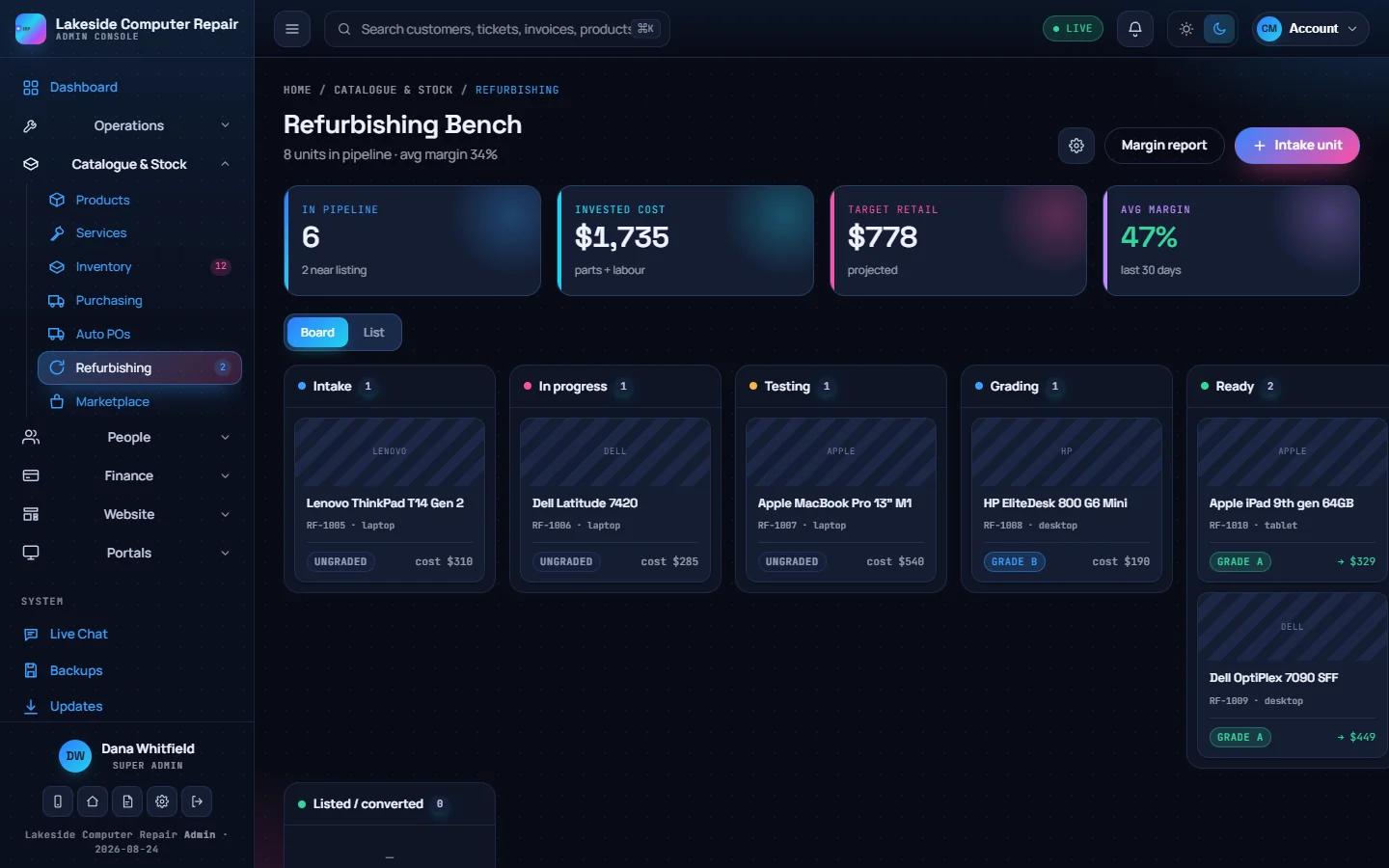
Units sit in lanes: Intake, In progress, Testing, Grading, Ready and Listed / converted. Drag a unit between lanes. The counters show the units in the pipeline, the money invested, the projected retail value and the average margin.
Open a unit, or click Intake unit:
- Initial details: device type (which picks the checklist), make, model, technician, known defects and notes.
- Refurbishment checklist: tick each stage. Some stages need details, such as serials, specs or photos, before they count as done.
- Test bench: pass, fail or not applicable for each hardware test, with readings and notes.
- Cosmetic grading: rate each item in the rubric. The worst rating suggests a grade from A to D, which you apply with one click. A grade D unit is flagged as a donor for parts.
- Job costing: acquisition cost, parts and labour minutes give the landed cost and a suggested price at your target margin. Each grade carries its own price factor. With an AI provider connected, AI recommend suggests a used-market price.
When a unit is ready, Convert to product creates a product from it, with its photos and specs, and moves it to Listed / converted. Margin report shows cost, price and margin across units.
Marketplace listings
Marketplace lists products on eBay and Facebook from inside the app, using your own developer credentials for each channel.
- On the channel's card, click Add credentials and enter the keys.
- Click Test to check the connection.
- Use Sync to bring listing statuses up to date.
The listings table shows each item's channels, price, status (live, needs renew, sold, ended, draft or error) and its views, likes and open buyer chats. Until a channel is connected and tested, listings for it stay as drafts.