Point of sale
POS Register (under Finance) is the front-counter register. Products are on the left, the cart is on the right.
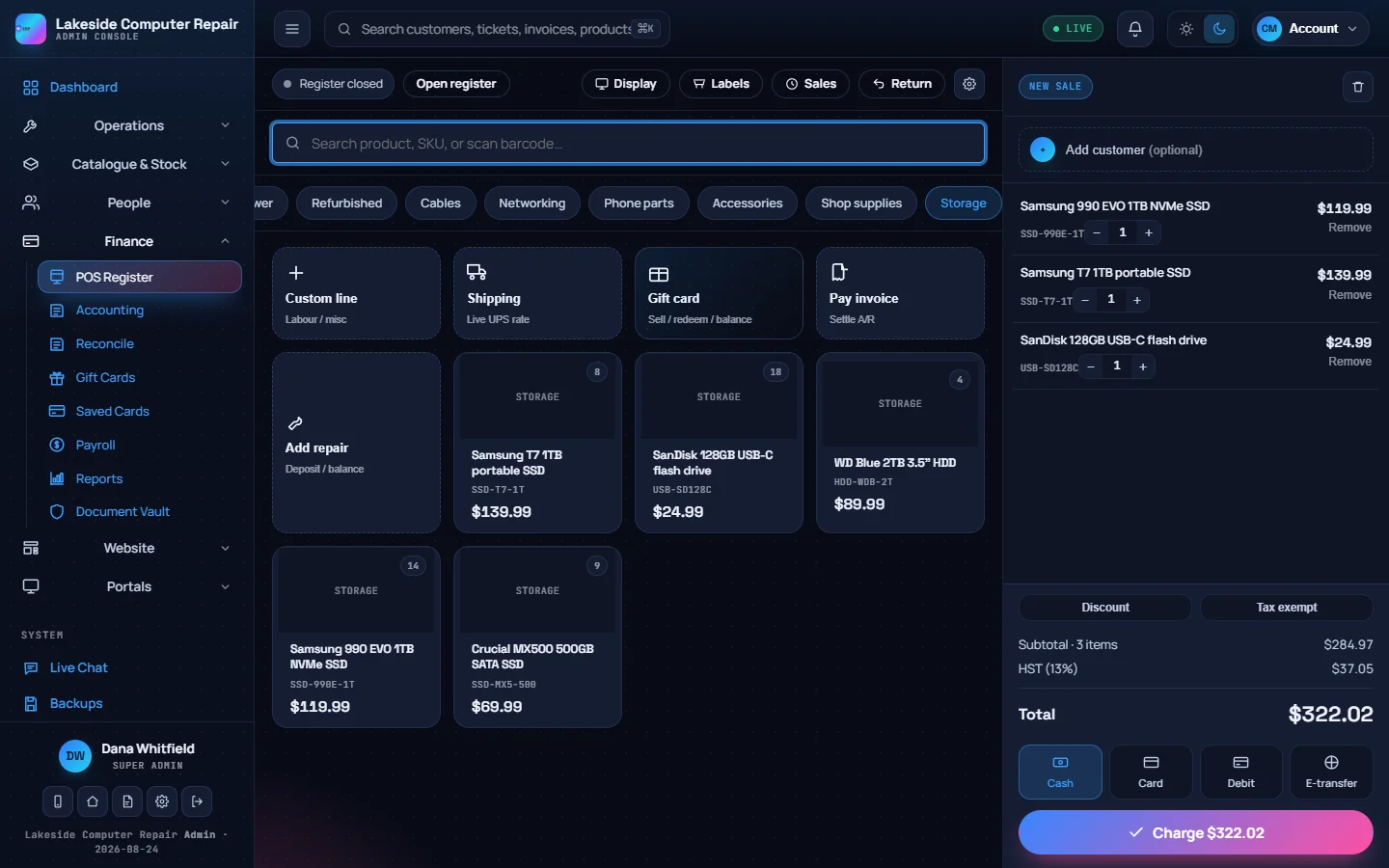
Ringing up a sale
- Filter products with the category chips, or search by name, SKU or barcode. Scanning a barcode, or typing an exact SKU and pressing Enter, adds the item straight to the cart.
- Click a product to add it, and use the + and − buttons on the cart line to change the quantity. Right-click a product to add a quantity, sell at a custom price, edit it or adjust its stock.
- Sold-out items are dimmed. Low stock shows a "2 left" style badge.
The first tiles add special lines:
| Tile | Use |
|---|---|
| Custom line | A one-off charge, such as labour, with your own description, price and tax setting |
| Shipping | A shipping charge, with an optional live UPS rate by postal code |
| Gift card | Sell, redeem or check the balance of a gift card |
| Pay invoice | Settle an open customer invoice |
| Add repair | Take a deposit or the balance on a repair ticket |
Add customer at the top of the cart is optional for walk-ins. Under the totals, apply a whole-sale Discount or mark the sale Tax exempt.
Taking payment
Pick a tender and press Charge. A single full payment completes the sale. For anything else the checkout window opens:
- Cash: enter what the customer gave you; the change is worked out. With cash rounding on, totals round to the nearest $0.05.
- Card or debit: with a paired Square Terminal the charge goes to the terminal; without one, the amount is recorded by hand.
- Gift card: enter the code and its balance is applied.
Add as many tenders as you need until the amount due reaches zero, then complete the sale. Print or email the receipt, and reprint any past receipt from Sales in the toolbar.
Every completed sale posts a balanced journal entry: revenue split between products and services, the tax collected, and the cash or card it landed in. Stock comes off automatically. See Accounting.
Opening and closing a register
Open register asks which register this device is (from the list in POS settings) and the opening cash float. Close register asks for the counted cash and produces a Z-report that compares it with the expected amount and shows the variance. Each device remembers its own register. You can sell with the register closed; it just will not track a drawer.
Returns and refunds
Click Return, pick the original sale, choose how many of each line come back, and choose the refund method: cash, card, store credit or the original tender. Choose whether to restock, and whether to open an RMA. A refund posts a reversing entry, and a card refund on a Square terminal payment goes back to that payment. Store credit is issued as a new gift card.
POS settings
Open the gear in the POS toolbar. Settings are on tabs: General, Checkout, Devices, Payments, Taxes and Registers.
- General and Taxes: tax label and rate, the opening float, a low-drawer alert, accepted tenders, prices that include tax, a second tax such as PST or QST, tax on shipping, and tax-exempt sales.
- Checkout: whether a customer is required, whether stock may go negative, the largest discount allowed without a manager, and a manager PIN for voids, refunds, price overrides and large discounts.
- Devices: barcode scanner prefix and suffix, receipt printer paper width (58 or 80 mm), auto-print, a cash drawer that opens on cash payments, a label printer for Code 128 price labels, and the monitor for the customer display.
- Payments: your Square keys and Square Terminal devices, and the Stripe webhook secret if you use Stripe. See Payments.
- Registers: your tills, with a terminal assigned to each.
Display opens a second-screen customer display that mirrors the cart, totals and change as you work.