Inventory and stock-takes
Your product list drives the POS, the online store and inventory, so you keep one catalogue.
Products
Products (under Catalogue & Stock) lists every item with its photo, title, SKU, category, price, stock and status. Click New product or a row to edit:
- Photos: upload, drag in or paste a URL. The first image is the cover.
- Details: title, SKU, description, price, stock, condition grade and category. Leave the SKU blank to have one generated.
- Specs: one per line.
- Shipping: weight and dimensions, used for live UPS rates.
- Warning bar: an optional condition note shown on the store page.
- Publishing: active or inactive, pinned to the store's featured carousel, and whether it can be paid for online.
Categories are shared by products, the POS and the store. Renaming one updates every product in it. Set a product inactive to hide it while keeping its sales history; deleting cannot be undone.
Services keeps the list of services, grouped by category, that you attach to repair tickets and sell at the counter.
Stock
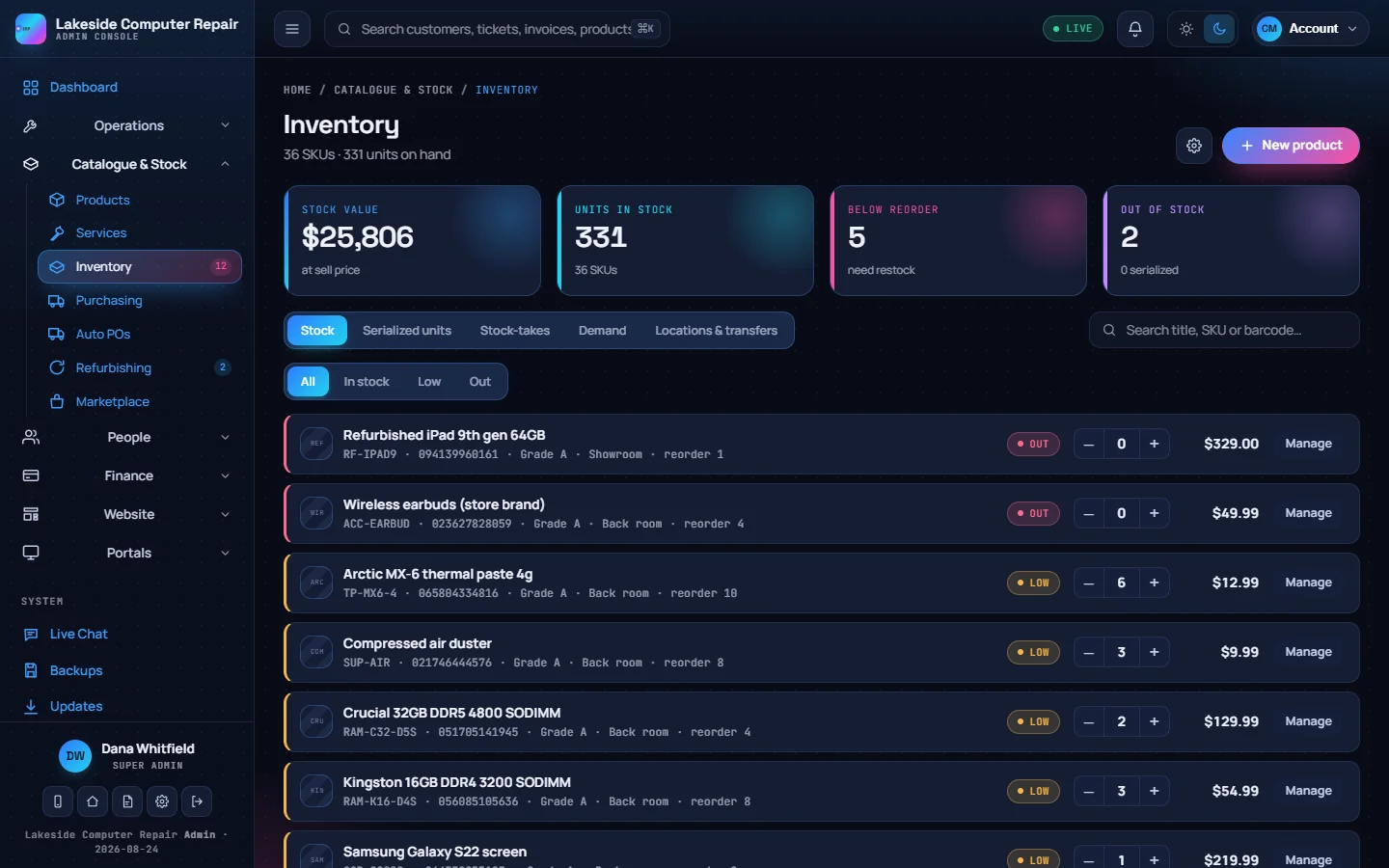
Inventory shows each product's on-hand count with an in stock, low or out badge, and totals for stock value, units, items below their reorder point and items out of stock. Use the − and + buttons for a one-unit change, or Manage for more:
- Record a movement: receive, sell, return, damage or set count, with a quantity and a note.
- Identifiers and reorder: SKU, bin location, reorder point, preferred supplier and a Code 128 barcode you can generate and print.
- Serial numbers: add tracked units by scanning or typing.
- Movement history: every change with its amount, the resulting count and the note.
Every change, from this screen, a sale or a refund, writes a movement, so the history always explains the count.
A product is low when its count falls to its reorder point. The default threshold is in Settings & Secrets › Inventory & Products.
Serialised units
The Serialized units view lists every tracked serial with its product, status (in stock, reserved, sold, RMA, returned, damaged or scrapped) and location.
Stock-takes
- Click New count, name it, and optionally limit it to low or out-of-stock items.
- Enter the counted quantity for each product. The difference from the system count shows as you type.
- Save draft to finish later, or Reconcile to stock to write the counts back. Each change is logged as a movement.
Demand
The Demand view looks at the last 90 days of movements and shows, per product, units sold, sales per day, days of cover and a suggested reorder quantity. Create PO turns a suggestion into a purchase order. See Purchasing and suppliers.
Locations and transfers
With two or more stock locations set up, each product's stock is split by location and the Locations & transfers view moves stock between them. With one location, nothing changes.