Purchasing and suppliers
Purchasing (under Catalogue & Stock) is where you order stock and parts and follow each order to delivery.
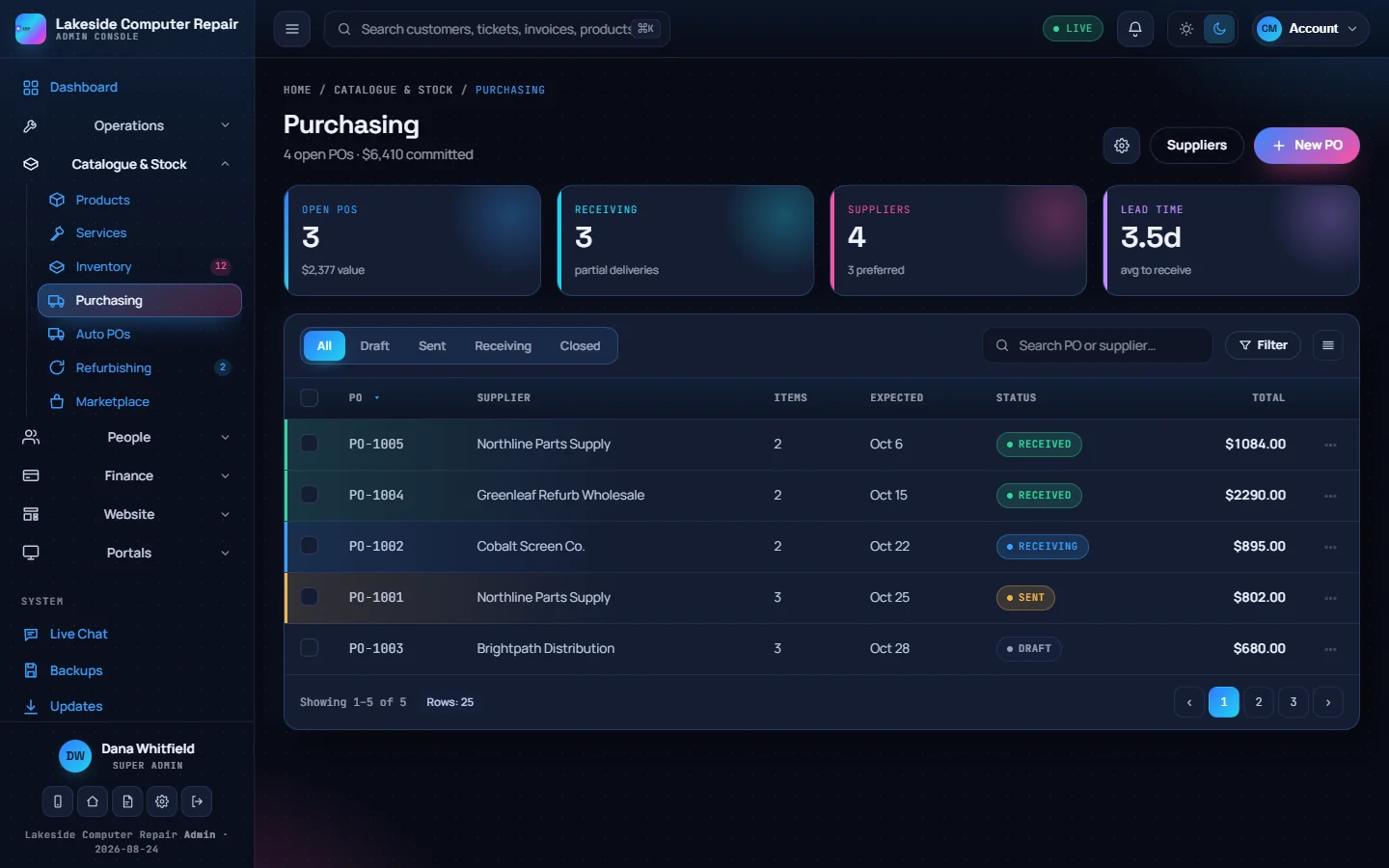
The counters at the top show open purchase orders and their value, orders being received, your supplier count and the average days from raising an order to receiving it. Filter by draft, sent, receiving and closed, or search by PO number or supplier.
Raising a purchase order
- Click New PO.
- Pick a supplier, or add one, and an expected date.
- Leave the PO number blank to get the next one, or type your own.
- Add lines: item, SKU, quantity and unit cost. The total updates as you go.
- Set the ship-to address and payment terms, add notes, and click Create PO.
An order moves through Draft, Sent, Receiving and Received. Change the status in the order, or use Mark as Sent, Mark Receiving and Mark Received in the row menu. Duplicate copies an order for a repeat purchase. Set a cancelled order to Cancelled rather than deleting it, so the history stays.
Auto POs
Auto POs scans for products at or below their reorder point, groups them by preferred supplier and skips anything already on an open order. It shows a preview first, and Generate creates draft orders. Nothing is sent to a supplier automatically.
Parts for a repair
Parts on a repair ticket have their own ordered and received flags, so a technician can track the part for one job without opening Purchasing. See Repairs and the bench.
Suppliers
Suppliers keeps each supplier's name, phone, email, address, website and your account number with them. Suppliers you add appear in the purchase order picker and as the preferred supplier on products.
Bills
A purchase order is not a bill. When the supplier's invoice arrives, enter it in Accounting › Bills so the cost reaches your books. See Accounting.